
How to fax from your phone, on iPhone or Android
By the PBXflex team · Updated
The short answer
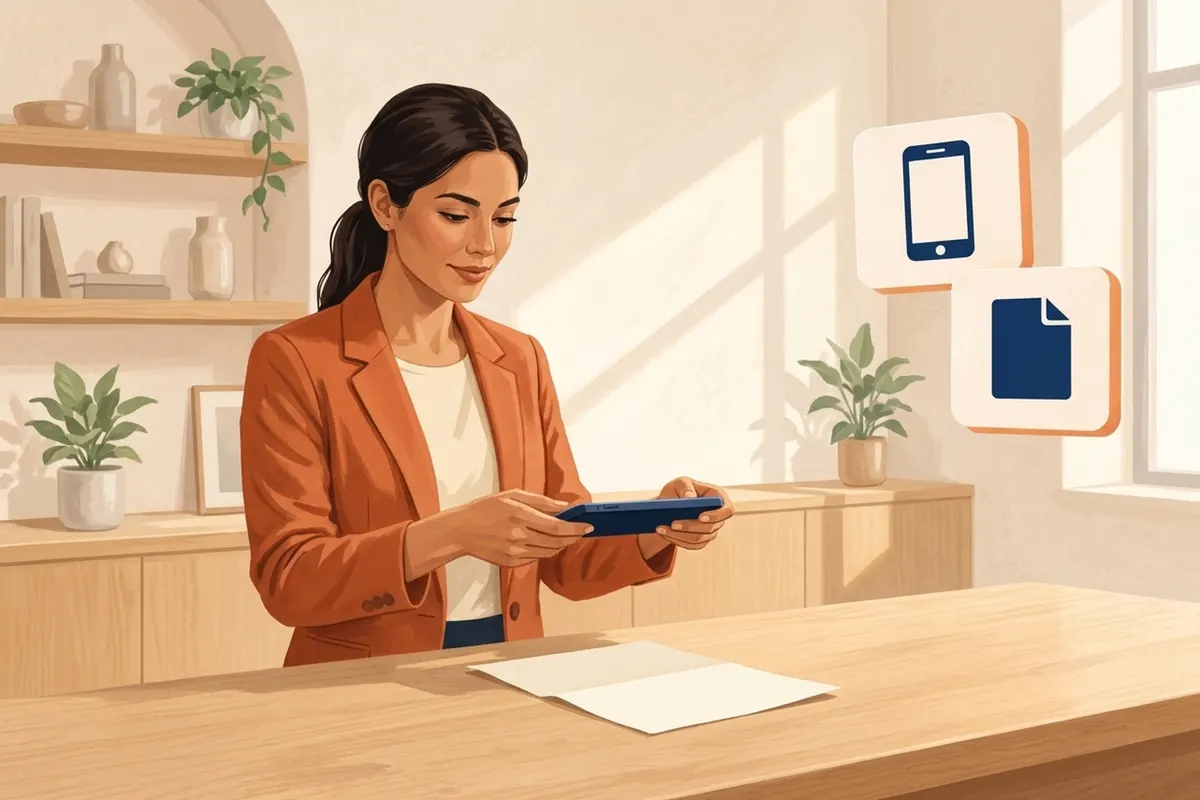
Neither iPhone nor Android has a fax feature built in, so a phone sends a fax through an online fax service. Scan the pages with the phone's camera, in Notes or Files on an iPhone, or Google Drive on Android, and save them as a PDF. Then open your fax service on the phone, enter the recipient's fax number, attach the PDF and send. Faxes sent to your fax number arrive in the same app as documents. For a business, the fax number belongs to the business, so the whole team can send and receive from it.
Fax from your phone or desk on the business's own fax number, included on every PBXflex plan. See online fax on PBXflex
What you need to fax from a phone
- The pages, as a PDF. Your phone's camera scans them. A PDF keeps several pages together in the right order.
- The recipient's fax number, with the area code. In the US and Canada that is 10 digits.
- An online fax service on your phone. A phone call cannot carry a fax, and neither iPhone nor Android includes a fax app, so the service sends the fax for you.
- A cover sheet, if the recipient expects one. Our fax cover sheet guide has free templates.
Step 1: scan the document
On an iPhone, Apple's guide has you open a note in Notes, tap the attachments button and choose Scan Documents. Hold the phone over the page. The iPhone captures it once it finds the edges, or you can take the picture yourself and drag the corners. Scan the next page, then tap Done when you have them all. The Files app can scan too: tap the More button and choose Scan Documents.
On Android, Google's guide has you open the Google Drive app and tap the camera button. Crop the page, scan any more, then save the file as a PDF. Files by Google has a scanner as well, which saves searchable PDFs.
For a clean scan:
- Lay the page flat on a dark surface, in good light, with no shadow from the phone.
- Choose the black-and-white filter for text. It sends faster and reads better on the recipient's machine.
- Check each page before you save. Cropped edges and blurred lines are the usual reasons a fax is unreadable.
Step 2: send the fax
- Open your online fax service on the phone and sign in.
- Start a new fax and type the recipient's fax number.
- Attach the PDF you scanned. Add a cover page if you need one.
- Send it, and wait for the confirmation.
The service dials the recipient's fax machine and delivers the pages. Keep the confirmation: it is your record that the fax arrived, and when.
Receiving faxes on your phone
To receive faxes on a phone, you need a fax number that delivers to an app instead of a machine. Faxes sent to that number appear in the app as documents, so you can open one on your phone, save it to a client's file or forward it to a colleague.
If your business already has a fax number printed on forms and letterhead, you do not need a new one. Ask the online fax service to move, or port, the number, and keep the old service running until the move is complete.
A phone fax for a business
Faxing from a phone suits people who are away from the office when a fax has to go: a contractor sending a signed form from a site, a property manager returning a lease, an accountant sending a document the IRS asked for. For a business, three things matter that do not matter for one personal fax:
- The number belongs to the business, not to one person's phone. When someone leaves, the fax number and its history stay.
- The team shares the inbox. A fax sent from one phone shows up for the colleague at the desk, so nobody sends it twice.
- Faxes are kept with your other records, with a delivery confirmation for each one you send.
How this works on PBXflex
PBXflex is a phone system for businesses, with fax included on every plan. It is for teams faxing on the business's number, not for a one-off personal fax. A fax extension gives the business a fax number and a shared fax inbox, which you can use in the web app or from your phone.
- To send from your phone, sign in to the PBXflex app (mobile web or the mobile app), open the fax inbox, attach the PDF and send it. Uploads can be up to 8 MB, and pages are sized automatically, so fewer are rejected by the receiving machine.
- Every fax you send produces a PDF delivery confirmation for the file. A failed fax retries automatically.
- Incoming faxes arrive in the same shared inbox, on the phone and in the web app. When the sender is in your contacts, the fax shows their name.
- Separate inboxes and folders keep referrals, records and signed forms apart.
- A fax page uses 2 credits, sent or received, from the same balance as your calls and texts.
Porting your fax number is free on every plan, and the switching guide explains how it works. If you want texting and fax but are keeping your current phone system, see Text & Fax. To fax from a computer instead, see how to fax from a computer.
Questions people ask
Can I fax from my iPhone?
Yes, with an online fax service. The iPhone has no fax feature built in. Scan the document in Notes or Files, then send the PDF from the fax service on your phone.
Can I fax from an Android phone?
Yes, the same way. Scan the pages with Google Drive or Files by Google, which save them as a PDF, and send it from an online fax service on the phone.
How do I scan a document to fax with my phone?
On an iPhone, open a note, tap the attachments button and choose Scan Documents. On Android, open Google Drive and tap the camera button. Both save the pages as a PDF you can attach to a fax.
Can I receive a fax on my phone?
Yes, if your fax number belongs to an online fax service. Each fax that arrives on the number appears in the app as a document you can open, save or forward.
Is PBXflex fax for personal use?
No. PBXflex is a phone system for businesses, and fax is part of a plan for a team, on the business's own fax number. It is not a service for sending one personal fax.
What does it cost to fax from a phone on PBXflex?
The same as from a computer. A fax page uses 2 credits, sent or received, from the same balance as your calls and texts. One credit is one cent, and fax is included on every plan.
Sources
Keep reading


See how it works on PBXflex
Auto attendants, call queues, business texting and fax in one app, on desk phones, the web and mobile. Number porting is free, and there is no contract.
Questions first? Call (877) 575 - 9527